


Facilities and services

As well as internal use, access to the Department’s diverse range of equipment and expertise is available to industrial partners. We can work with companies in a variety of formats to suit your specific needs including:
- Full analysis with report,
- Provision of data only,
- In-house equipment training,
- Consultancy.
There is also an extensive list of the research facilities across the whole University maintained here. Chemistry’s equipment is housed in Small Research Facilities (SRFs) run by dedicated experts with the know how to provide innovative solutions.
NMR spectroscopy
The Department’s core NMR facility is housed in the Chemistry Research Laboratory (CRL) and is one of the largest magnetic resonance facilities in the UK supporting chemical science research.
- Thirteen solution-state FT NMR instruments:
- Proton operating frequencies ranging between 200 and 700 MHz.
- Nitrogen- and helium-cooled cryogenic probes (at 600 and 700 MHz).
- Multinuclear probes.
- High- and low-temperature operation.
- Automation
- Two 400 MHz solid-state instruments with variable temperature capabilities.
- Maintained and operated by five staff members.
- Access through:
- Fully automated open-access instruments.
- Bookable “hands-on” systems.
- Submission service provided by NMR staff, who also contribute directly to research projects within the Chemistry Department and beyond.
- The facility provides commercial services to industry where possible.
Mass spectrometry
The Mass Spectrometry facility housed in the CRL is one of the largest and best equipped mass spectrometry labs in the UK.
- 21 mass spectrometer systems with an equipment base of £7.5 million.
- Run and managed by four full time staff.
- Instrumentation includes:
- GC-MS,
- LC-MS,
- nanoLC/MS,
- MALDI TOF,
- ion-mobility-MS systems.
- Services include:
- High-resolution accurate mass analysis,
- Amino acid analysis,
- Proteomics,
- Metabolomics,
- Oligonucleotide analysis,
- High-throughput screening.
- Equipment access is configures to provide open access, trained user, and HRMS systems for researchers across the Department.
- Research services, collaborations, and consultancy in:
- Mass spectrometry,
- Separation science,
- Related analytical chemistry projects.
- For further information about services and instrumentation please see the facility website and/or contact the MS services Manager John Walsby-Tickle.
ESR spectroscopy
The Centre for Advanced Electron Spin Resonance (CAESR) is located on the first floor of the Inorganic Chemistry Laboratory. Facilities include:
- Commercial spectrometers for continuous-wave (CW) ESR and pulsed ESR operating at:
- X-/W- band (9.5 and 94 GHz), featuring a 2020 EPSRC-funded upgrade that added arbitrary waveform generator (AWG) capability at W-band,
- X-/Q- band (9.5 and 34 GHz) with an arbitrary waveform generator (AWG) funded by a 2013 £1.3M grant from EPSRC.
- Samples may be investigated in a temperature range of 2.5–400 K.
- Diverse lasers and microwave, optical, current detection.
- Instrument training,
- Project consultation,
- ESR funding advice.
Users from University of Oxford departments, other universities, and industry are welcome to approach the management about possible ESR collaborations.
Surface analysis
The Surface Analysis Facility (SAF), housed in several purpose-built laboratories in the basement of the CRL, operates a diverse range of equipment with experienced staff to aid in the modification and provide comprehensive characterisation of surfaces and thin films. The SAF regularly works with industry on issues such as surface cleanliness and contamination issues, adhesion failures and disbondments, and coating defects. State of the art scientific equipment and methods include:
- Atomic force microscopy (AFM),
- Scanning tunnel microscopy (STM),
- Fourier transform infrared spectroscopy (FT–IR), including :
- IRRAS,
- PMIRRAS,
- ATR,
- Ellipsometry,
- X-ray reflectometry,
- X-ray photoelectron spectroscopy,
- Surface area characterisation by gas adsorption:
- Surface area,
- Pore size distribution,
- Dynamic surface tension and contact angle measurements,
- High vacuum metal evaporator,
- Plasma etcher,
- Ozone lamp and potentiostat for sample preparation and modification.
X-ray crystallography
Chemical crystallography is one of the UK’s leading crystallography groups, equipped with state-of-the-art single crystal diffractometers and carrying expertise in a range of related areas. Previous industrial clients include pharmaceutical companies and biotech firms. Located in the basement of the CRL, the instrumentation consists of:
- Three Rigaku Oxford Diffraction systems,
- Two dual wavelength SuperNova A systems with microfocus copper and molybdenum sources,
- A dual wavelength, rotating anode Synergy DW.
- All instruments are fitted with Oxford Cryosystems’ Cryostreams enabling routine data collection the range 80–500 K.
- Facilities are also available for exceptional data collections at high pressure and 30–300K.
- Polarising microscopes with a hot and cold stage.
- Digital video cameras.
Training and support is provided by the facility staff, and a commercial service is available on request.
Inorganic materials characterisation
The Inorganic Materials Characterisation (IMC) facility is based in the ICL and encompasses powder diffraction, conductivity, and magnetometry measurements.
It provides training to allow users to conduct their own measurements and support for interpreting their data. Access is open to members of the Department of Chemistry and is open to external researchers on request.
Facilities include:
- An MPMS-XL and a MPMS-3 SQUID magnetometer.
- Standard MPMS operating modes covering 1.8–400 K with DC, AC, and VSM magnetic measurement,
- Options for the MPMS-3 include ultra low field, oven 300–1000K, sample rotator, magneto-optic rod, electrical transport, and 1.3 GPa high pressure cell,
- Low temperature conductivity measurement apparatus,
- High-intensity Bruker D8 Advance Eco Cu sourced diffractometer:
- Configured to provide high throughput powder diffraction measurements,
- 9-position sample changer,
- Fluorescence filtering detector,
- High-resolution Malvern Panalytical X’pert and Empyrean Cu sourced diffractometers:
- Configured for single-wavelength high resolution powder diffraction with variable optics,
- Option for transmission capillary measurement on the Empyrean,
- Air-sensitive measurements are possible and variable temperature measurement may be possible on request.
Proteomics
The facility is equipped with a wide range of mass spectrometry instrumentation, sample preparation technologies and data analysis software.
We have experience in:
- Protein identification,
- Quantitative mass spectrometry:
- SILAC,
- Label-free,
- Dimethyl labelling,
- TMT,
- Characterisation methods for a range of post-translational modifications.
Chemistry Teaching Laboratories
Built in 2018, our state-of-the-art teaching labs offer conference and lab facilities for external hire for summer schools, corporate training, and analytical service platforms supported by our staff of highly experienced demonstrators and technicians.
Two main teaching labs are equipped with bench-top NMR, IR, and UV spectrometers.
The analytical suit houses spectrometers including:
- Multinuclear NMR,
- GC &GC/MS,
- HPLC & GPC,
- TLC–MS,
- ICP/MS & Flame AA,
- Raman,
- UV,
- Fluorescence,
- X-ray diffractometers (powder and single crystal),
- And DSC equipment.
Facilities also include a large seminar room to seat 100, which can also be divided into equal capacity rooms, write-up sections, and a welcoming reception area.
Analytical Suite services may be available throughout the year, subject to negotiation, and other facilities are available for hire outside the University of Oxford terms.
To discuss your requirements, and for further information, please contact the Analytical Suite Manager (Ryan Clark).
Mechanical Workshop
Our specialist mechanical engineering team provides design, manufacturing and technical support for projects across the University and for external collaborators; we have a dedicated workshop for supporting the teaching and research activities within the Chemistry department.
We work with other universities, research institutes and industry on precision engineering projects for specialist instrumentation to support research; we produce a wide range of components, from precision parts to larger fabricated assemblies, many of which operate in hostile environments, cryogenic temperatures and high vacuum.
What we do:
- CNC milling
- CNC turning
- 3D printing
- Manual machining
- Vacuum testing
- Welding
- Assembly
- Laser table equipment and enclosures
- Technical advice
Contact us at mechanical@chem.ox.ac.uk
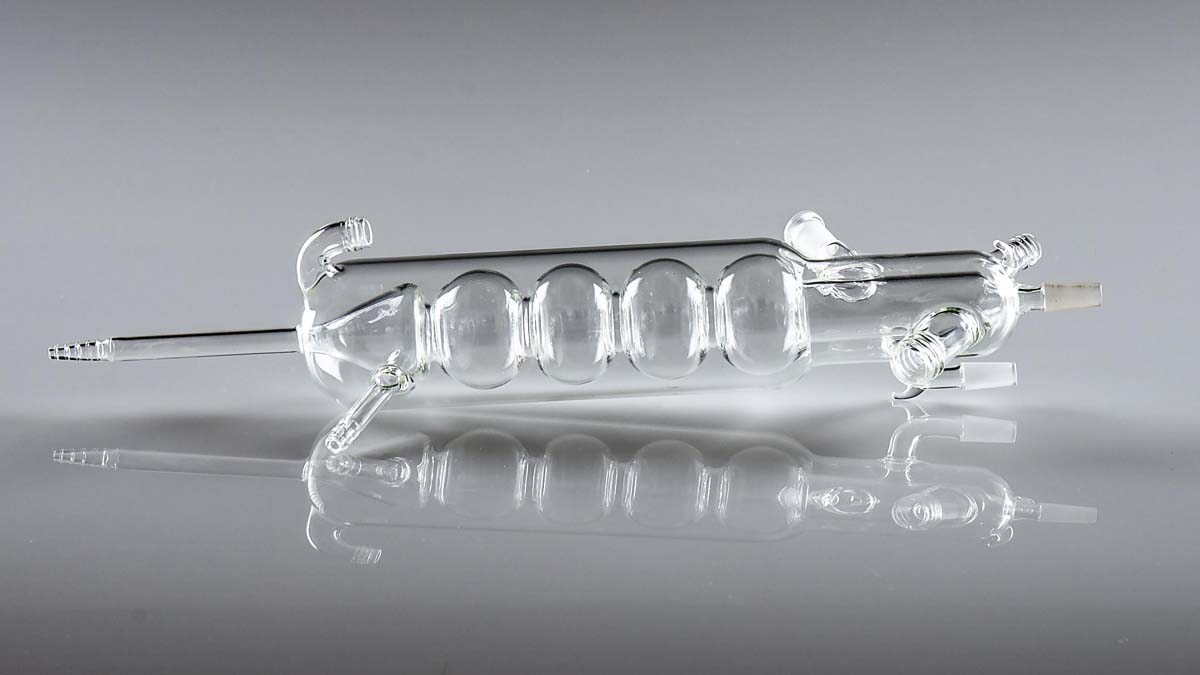
Bespoke glassware made by Terri Adams at the Department of Chemistry's glassblowing facility

